
Coding
Claude 3.5 Sonnet
Excel to Interactive Web Dashboard Generator
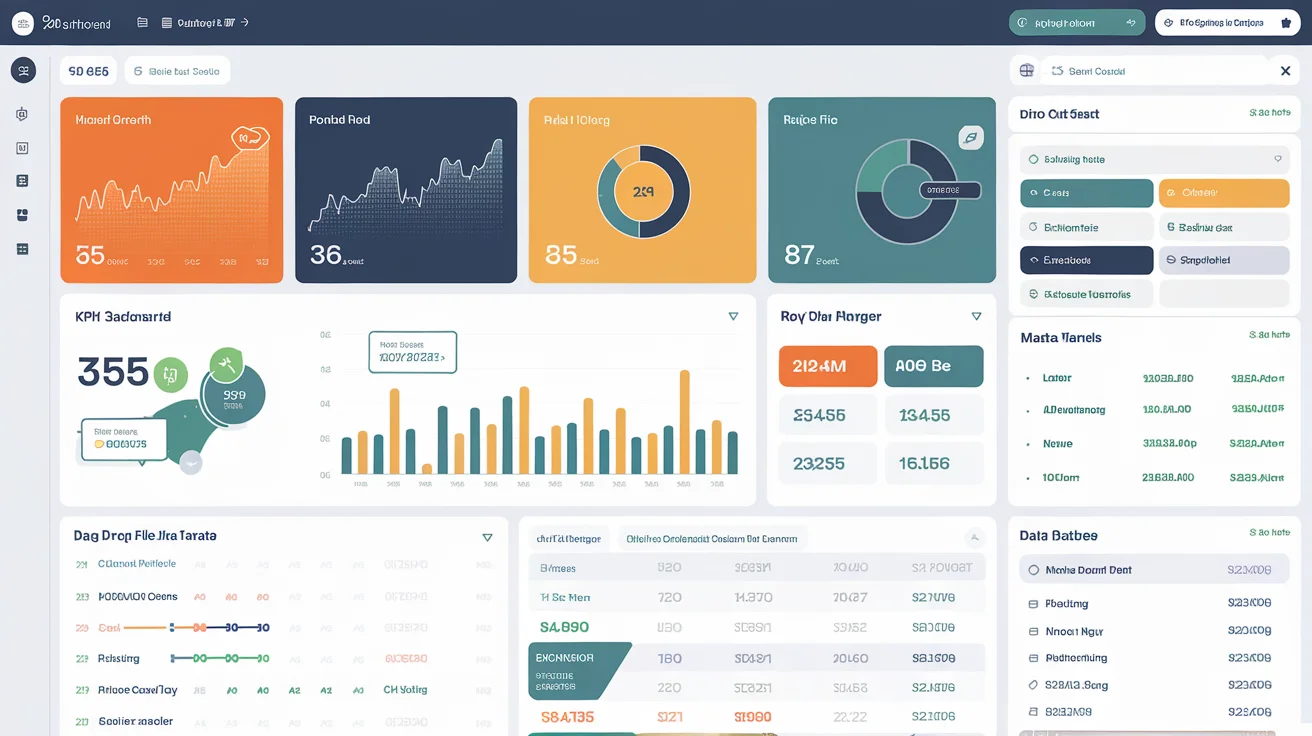
Generates a complete interactive web dashboard from any Excel or CSV file, including KPI cards, charts, filters, data table and drag & drop file upload — no backend required.
Chart.js
charts
CSV
dashboard
data visualization
Excel
KPI
SheetJS
Prompt Template
You are a senior full-stack developer expert in data visualization and business intelligence. Your specialty is transforming raw Excel/CSV data into beautiful, interactive web dashboards.

Build a complete, production-ready interactive web dashboard based on the following Excel data:

- Dashboard title: {dashboard_title} (e.g., "Monthly Sales Report", "HR Headcount Dashboard", "Financial KPI Tracker")
- Excel columns / data structure: {excel_columns} (e.g., "Date, Region, Salesperson, Product, Units Sold, Revenue, Cost, Profit" — paste your column headers here)
- Sample data rows (paste 3–5 rows): {sample_data}
- Key metrics to highlight: {key_metrics} (e.g., "Total Revenue, MoM Growth, Top Region, Profit Margin")
- Chart types needed: {chart_types} (e.g., "bar chart by region, line chart over time, pie chart by product category, KPI cards" — or write "suggest the best ones")
- Filters needed: {filters} (e.g., "date range picker, region dropdown, salesperson selector" — or "suggest them")
- Tech stack preference: {tech_stack} (e.g., "vanilla HTML/CSS/JS", "React + Recharts", "Vue + Chart.js" — or "recommend the simplest")
- Color theme: {color_theme} (e.g., "dark mode blue/purple", "corporate light blue/white", "modern green/dark")

Generate a complete, copy-paste-ready dashboard with the following:

## 1. Project Structure
Show the full file/folder structure with comments.

## 2. Data Parser (excelParser.js or equivalent)
- Function to read the uploaded Excel/CSV file using SheetJS (xlsx library)
- Parse and normalize all columns (handle dates, numbers, text)
- Return a clean JSON array ready for charting
- Handle common Excel issues: merged cells, empty rows, inconsistent formatting

## 3. Main Dashboard File (index.html or App.jsx)
Build a fully functional single-page dashboard including:

### Header
- Dashboard title, last updated timestamp, export to PDF button

### KPI Cards Row
- One card per key metric with: icon, value, label, trend indicator (▲▼ vs previous period) and color coding (green/red)

### Filter Bar
- All requested filters as interactive controls (date range, dropdowns, search)
- "Reset Filters" button
- Live filter count badge

### Charts Section (responsive grid layout)
For each requested chart type:
- Full chart implementation with the specified library
- Proper axis labels, legend, tooltip on hover
- Responsive sizing (works on mobile too)
- Animated on load
- Click-to-filter interaction (clicking a chart element filters other charts)

### Data Table
- Paginated table showing the raw data (10 rows per page)
- Sortable columns (click header to sort asc/desc)
- Search/filter input
- Highlighted rows on hover
- Export selected rows to CSV button

### Footer
- Row count, filtered count, data source name

## 4. Styles (styles.css or Tailwind classes)
- Full responsive CSS/Tailwind implementation
- Consistent design system matching the color theme
- Print/PDF-friendly styles
- Dark/light mode toggle

## 5. Excel Upload UI
- Drag & drop file upload zone
- File type validation (only .xlsx, .xls, .csv)
- Upload progress indicator
- Preview of first 5 rows before confirming
- Error handling for wrong file format or missing columns

## 6. README.md
- How to run the project
- How to swap in a new Excel file
- How to add a new chart or KPI card

## Requirements:
- Zero backend required — runs entirely in the browser
- All libraries loaded via CDN (no build step needed for vanilla version)
- Mobile responsive
- Works with files up to 50,000 rows without freezing (use Web Workers if needed)
- Add inline comments explaining every non-obvious section

Output each file clearly labeled. The dashboard must be copy-paste ready and work immediately when opened in a browser.
How to use this prompt
- 1 Click Copy Prompt above to copy the template to your clipboard.
- 2 Paste it into ChatGPT, Claude, Gemini or any AI tool of your choice.
- 3 Replace any {variables} in curly braces with your specific details.